Getting started
Fancy Animations adds scroll-linked, entrance, text, hover, mouse and cursor animations to WordPress sites built with Bricks Builder, Etch or the native block editor (Gutenberg). You set every animation from your builder's own panels: pick an element, choose how it moves and adjust a few settings. Nothing here needs code to get a working result.
Requirements
- WordPress 6.0 or later.
- PHP 8.0 or later.
- Works with Bricks Builder, Etch, or the native WordPress block editor — you don't need all three, and most sites only use one.
Installation
- In wp-admin, go to Plugins → Add New → Upload Plugin, choose the plugin ZIP, and activate it.
- Go to Fancy Animations → Settings, paste the license key from your purchase confirmation email and click Activate (see License & updates). Until the license is active, the other settings screens stay locked; animations already on your pages keep working either way.
- Open Fancy Animations → Animation Settings (the Animations tab) to review the site-wide defaults: animation duration and delay, which extra modules you need (Mouse, Text, Gradient background) and how the CSS is printed. See Animation settings for the full list.
The settings screens
Every Fancy Animations screen in wp-admin shares the same top bar: one tab per screen (Animations, Global animations, Page transitions, Cursor, Smooth scroll, Settings). A dot next to Page transitions, Cursor or Smooth scroll means that feature is on.
-
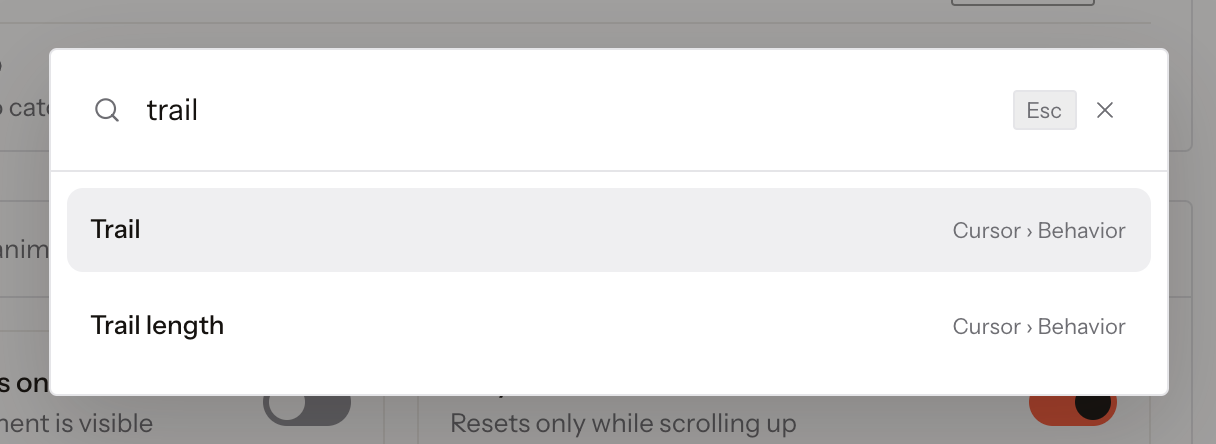
Search. Press / anywhere outside a field, or click Search in the top bar, and type part of a setting's name. Pick a result to jump straight to that setting, on whichever screen it lives.
-
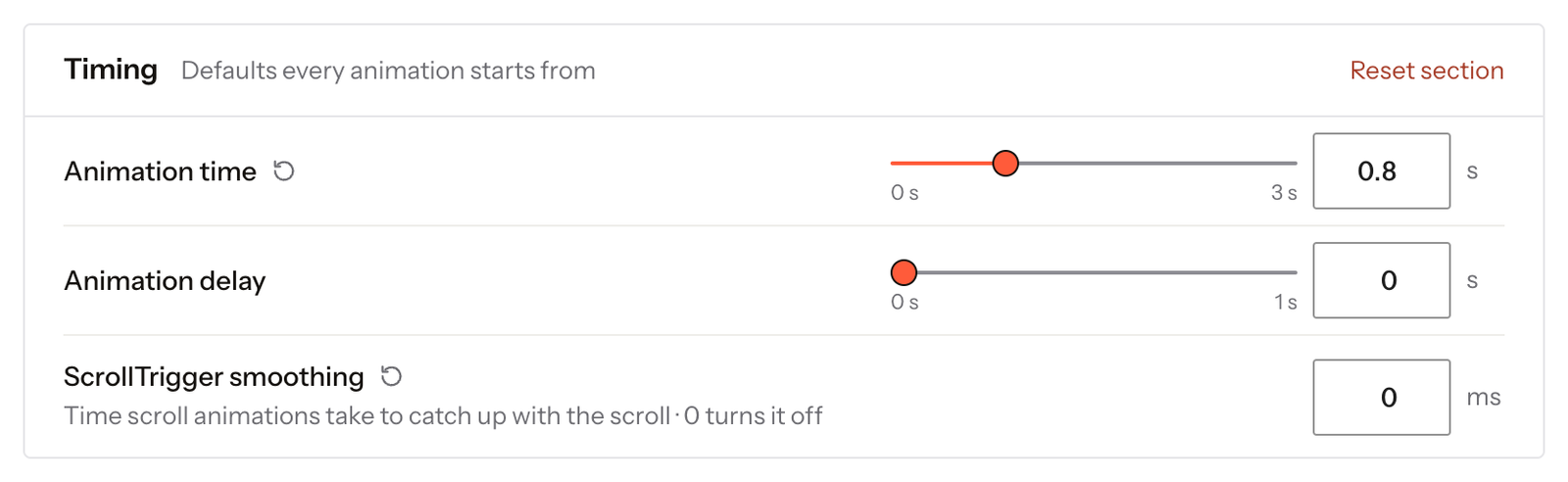
Back to the default. A ↺ appears next to the name of any setting you've changed from its default; click it to restore that one value. Reset section, at the top right of a section, restores every setting in it.
-
Saving. Changes aren't applied until you click Save changes in the bar at the bottom, which also counts what's pending; Discard undoes them. If you leave the screen with unsaved changes, you're asked whether to save, discard or stay. The Settings screen is the exception: each action there applies at once.

The three builders
Fancy Animations is used almost entirely through its own panels — pick a preset, toggle a setting, see the result. You never need to write or add a class by hand to use it day to day.
| Builder | Where Fancy's panels live |
|---|---|
| Bricks Builder | Element settings in the Style tab, grouped into panels like "ScrollTrigger Animations", "Entrance Animations", "Text Animations" |
| Etch | A dedicated Fancy panel on the element, with the same toggles and fields as Bricks |
| Block editor (Gutenberg) | Fancy panels in the block sidebar — needs the Gutenberg blocks (Beta) module turned on first in Animation settings |
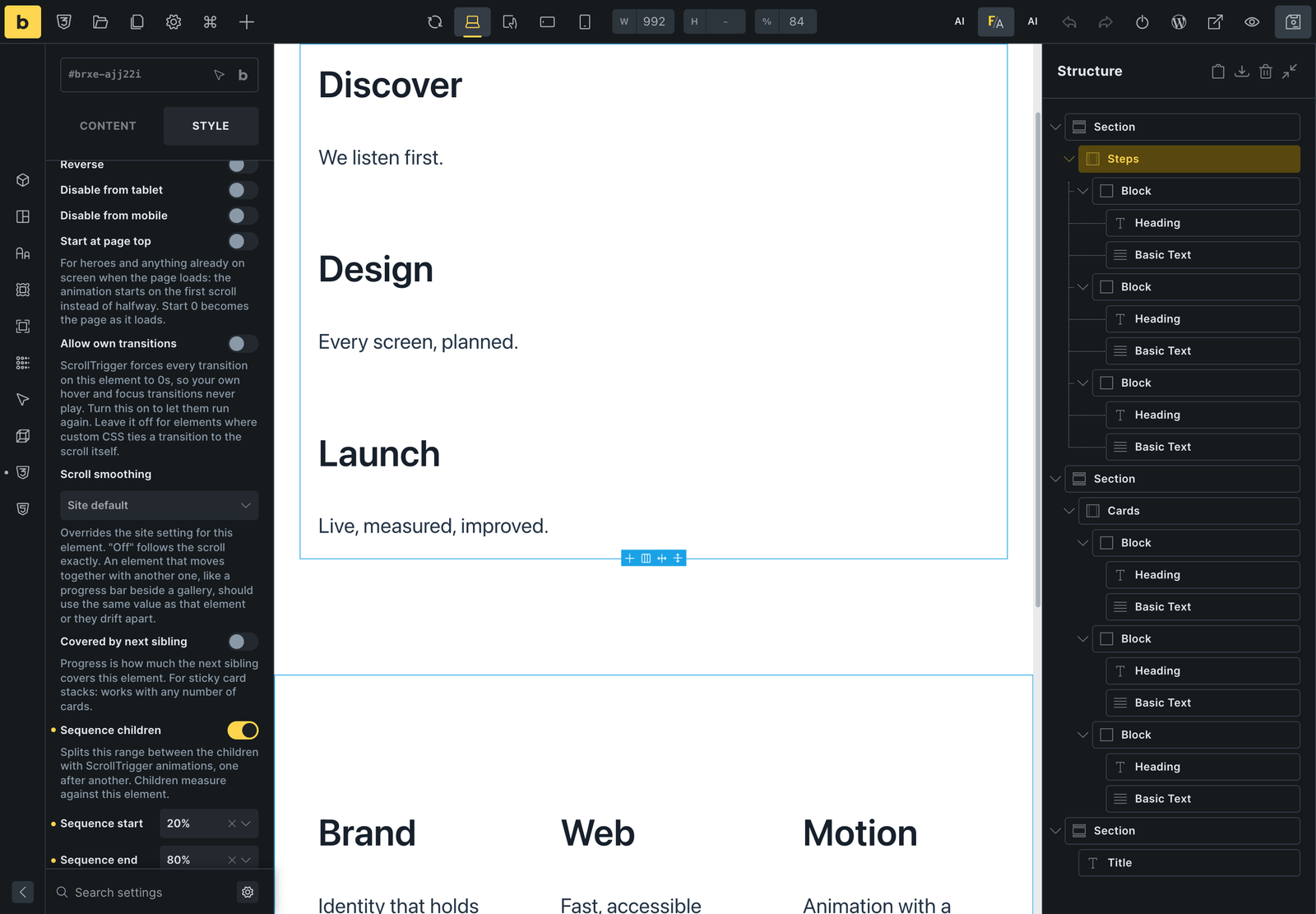 Bricks: the Fancy panels in the Style tab, and the FA button in the toolbar that plays the animations in the canvas.
Every page in Animation families shows the exact control for all three builders side by side, so you can follow along in whichever one your site actually uses. See Builder notes for canvas-specific behaviour (preview toggles, what never runs inside a builder canvas, and so on).
Your first animation
A quick, safe starting point in any builder:
- Pick a heading or image a little way down the page (not the very first thing visible on load).
- Give it an entrance animation — "Fade in" or a soft slide is a good, subtle default.
- Save and check it on the published front end (not just the builder canvas — see Builder notes for why that matters), scrolling down slowly from the top.
Prefer to start from a finished section? The templates on fancyanimations.com are real Bricks sections built with these same panels: open one to see what each setting does.
From there, Animation families covers everything else the plugin can do, and Advanced recipes has full, tested builds for the more ambitious scroll-driven scenes (pinned tracks, sequences, 3D objects and more) once you're comfortable with the basics.
If you'd rather describe what you want in plain language and have it built for you, see the AI panel (inside Bricks) or AI assistants via MCP (any MCP-connected assistant, new in 3.2.0).