Scroll trigger
Scroll trigger animations tie a CSS property to how far an element has scrolled through the screen. Instead of "play once when visible" (that's an entrance animation), the element's look is a direct function of scroll position: scroll down, the effect advances; scroll up, it reverses. This is the family behind zooms, fades, sweeps, reveals, pinned scroll scenes and video scrubbing.
See it live: the Basic parallax and Hero translate elements templates.
See it live: Scroll animations on fancyanimations.com.
How it works
Every element carrying a scroll trigger animation is measured once per frame. Its progress
through the viewport (called p) goes from 0 (its top edge is touching the bottom of the
screen) to 1 (its bottom edge is leaving the top of the screen) — 0.5 means it's roughly
centred on the screen.
Each animation row you add (a "preset") turns that raw progress into one CSS property, over whatever start/end window you give it.
Presets
Each preset writes exactly one CSS property. This matters: two presets that write the same
property on the same element (two that both use transform, for instance) will fight each other
— only one wins. If you need to combine effects, put the second one on a child element, or use
custom (see Scroll math & custom CSS) to drive several properties from one
row.
| Preset | What it animates |
|---|---|
| Zoom | Scale |
| Fade | Opacity |
| Left to right / Right to left | Horizontal slide |
| Top to bottom / Bottom to top | Vertical slide |
| Rotate | A full rotation |
| Sweep (bottom, top, left, right, centre horizontal, centre vertical) | A wipe/reveal using a clip |
| Circle | A circular reveal, growing from the centre |
| Blinds | Three vertical strips revealing like blinds |
| Text reveal (black or white) | The text is revealed through a moving colour band |
| Video scrub | The video's current playback position (see Video scrub) |
| Custom | Nothing by itself — only exposes a scroll variable for your own CSS |
Subtle choices for body text and supporting content: Fade, or a soft slide. Save zoom, rotate and sweep effects for hero visuals and section dividers.
The window: Start, End, From, To, Invert
Every row has a window that maps the raw scroll progress to the preset's output:
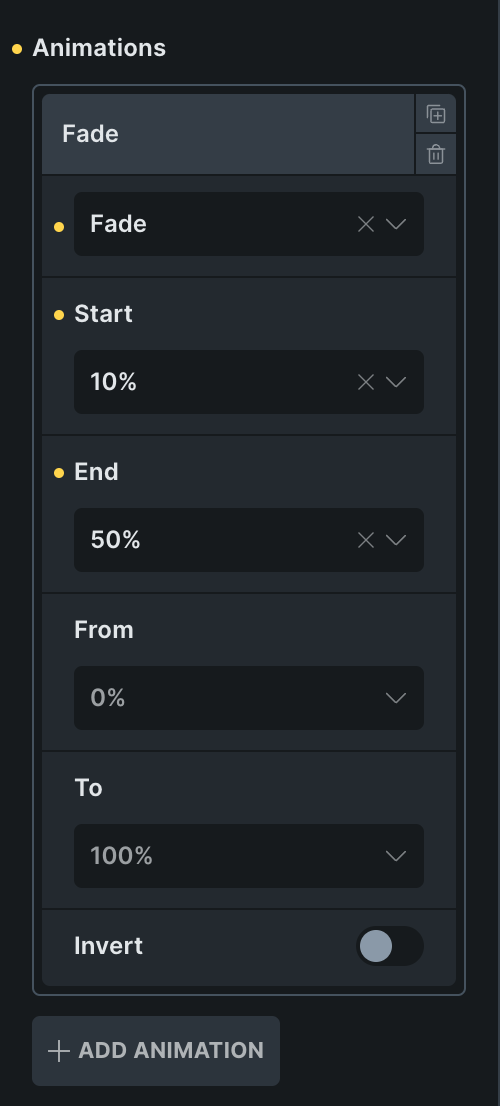 One animation row in Bricks: a preset and its window.
| Field | Meaning | Empty means |
|---|---|---|
| Start | Scroll position where the animation begins | 0 (top of the pass) |
| End | Scroll position where it's complete | 100 (bottom of the pass) |
| From | The lowest value the animation outputs | 0 |
| To | The highest value the animation outputs | 100 |
| Invert | Runs the output backwards (To → From instead of From → To) | Off |
Start, End, From and To only accept multiples of 5 (5, 10, 15 … 95). Any other value has no effect and the row silently falls back to its full default range. The mapping between Start/End and the output is linear — there's no easing curve, except for "Reverse" (below), which peaks in the middle of the window instead of running straight through.
A natural-feeling window, without a pinned stage, is Start around 5–10 and End around 40–60 (End 40 for very tall elements). Spreading it across the full range (0 to 100) makes the effect feel slow and vague.
Elements already on screen when the page loads
A tall hero that fills the screen on load is already partway through its own scroll pass before
the visitor has scrolled at all — a 100vh hero, for example, starts at p = 50. If your window
starts at 0, the first half of the animation has effectively already played and the visitor never
sees it.
Start at page top fixes this for you: turn it on for any element that's visible on load (a
hero, or anything above the fold) and its pass is measured from the page as it loads, so 0 is
the first scroll — you can use the same ordinary windows (Start 5–10, End 40–60) you'd use
anywhere else.
Don't use it on an element inside a pinned scroll scene — there, the pin itself already starts exactly at load, and turning this on would rescale the whole pass and move your rows out of place. It's for on-screen-at-load elements that are not pinned.
If you're on an older version without this option, start the window at the value the element already has when the page loads instead of at 0 — a 100vh hero needs Start 50; a 300vh pinned scene (pinned at 25–75%) needs Start 25, and so on.
Element settings
| Setting | Effect |
|---|---|
| I am parent container | Marks this element as the measuring box for descendant elements that use "Get parent" below it |
| Get parent | Measures progress against the nearest "I am parent" ancestor instead of itself — essential inside pinned scenes |
| Reverse | Makes the row a round trip: it peaks in the middle of the window instead of running straight through |
| Disable from tablet / Disable from mobile | Switches the animation off at ≤991px / ≤767px — the element shows its plain, unanimated state |
| Start at page top | Since 3.2.0 — see above |
| Allow own transitions | Since 3.2.0 — see Own transitions below |
| Scroll smoothing | See Scroll smoothing below |
- Bricks
- Etch
- Gutenberg
Style tab → ScrollTrigger Animations. Add rows to animate the element — each row is one preset with its own Start/End/From/To/Invert. The other element settings above (I am parent, Get parent, Reverse, Disable from tablet/mobile, Start at page top, Allow own transitions, Scroll smoothing) are toggles and selects in the same panel.
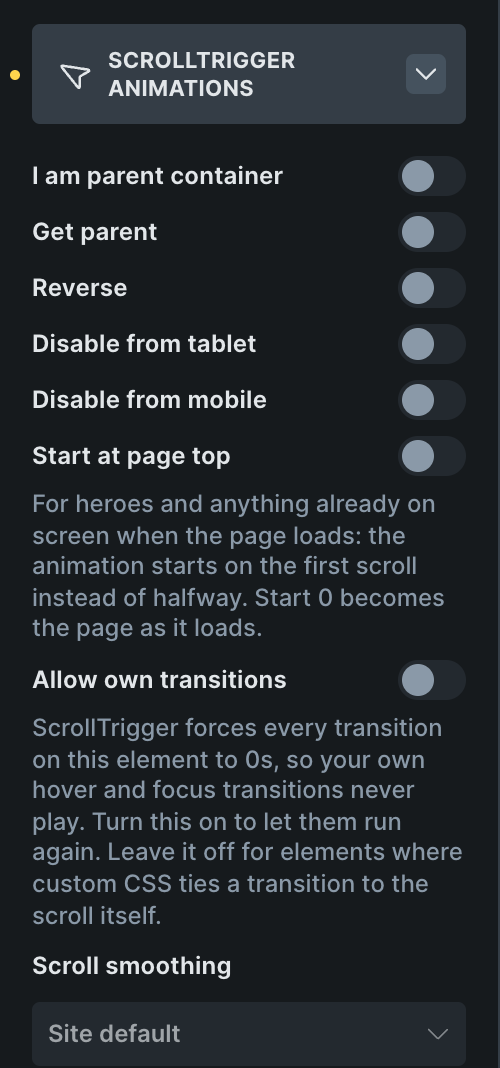 The top of the panel: the element settings.
Nothing animates in the Bricks canvas until you turn on the FA button in the builder toolbar ("Enable/disable Fancy Animations"). It's off every time you reopen the builder — it isn't remembered. With it off, scroll trigger pauses entirely so you can edit without the page jumping around.
Every setting here is a class added to the element from the Fancy panel → ScrollTrigger Animations. The panel shows friendly names; it writes the classes for you.
The Etch canvas has its own toolbar toggle for Fancy Animations (on by default, remembered per browser).
Turn on "Gutenberg blocks (Beta)" in Animation settings first — without it, no Fancy controls appear in the block editor at all. Then, in the block sidebar: Scroll Trigger Animations panel, with "Enable scroll trigger" as the master switch — nothing is output unless it's on.
To add a second preset to the same block, type its extra class by hand into Advanced → Additional CSS class(es): the sidebar panel only configures one preset per block.
Own transitions
Every element with a scroll trigger class gets transition: all 0s !important added to it
automatically. This is deliberate: without it, the first time the browser reads the scroll
variables, a theme transition could make the element visibly glide into its start position
instead of just appearing there.
The side effect: it also kills the element's own hover and focus transitions — a button inside a pinned scene, for example, would lose its hover animation entirely, even on a property the scroll never touches.
Allow own transitions opts the whole element back in: its own CSS transitions play again.
Use it when the element needs a hover or focus transition on a property the scroll itself doesn't
drive, and then scope your own transition to just those properties (e.g.
transition: background-color .3s, color .3s;) — never transition: all, or the scroll-driven
property would start lagging behind the scroll too.
On older versions (or if you'd rather not use the opt-out), put the hover effect on a child or wrapper that has no scroll trigger class of its own — it never gets the blanket transition reset.
Scroll smoothing
The browser scrolls in whole pixels. When a mouse wheel slows down, the page can advance by 1 pixel on one frame and 0 on the next. For most animations that's invisible, but for anything amplified — a horizontal track that travels much further than the page scrolls, for example — those single-pixel steps turn into a visible stutter.
Scroll smoothing makes each element's progress ease towards the real scroll position instead of snapping to it immediately, which hides the stutter. It's a site-wide default (see Animation settings), with a per-element override:
| Value | Effect |
|---|---|
| (default) | Uses the site-wide value |
| Off | Follows the scroll exactly, no smoothing |
| A time, from 0.05s to 0.5s | How long it takes to catch up — higher feels softer but laggier |
Give two elements that must stay in perfect sync (a progress bar next to the gallery it tracks, for example) the same smoothing value, or they'll drift apart from each other. Video scrub (Video scrub) has its own easing and ignores this setting entirely.
Video walkthrough
Common problems
- A hero animation looks already half-played when the page opens. The window starts before the element's actual scroll value at load. Use Start at page top (3.2.0+), or start the window at the load value manually (see the table above).
- A hover or focus transition on the element has stopped working. Every scroll trigger element gets its transitions reset. Turn on Allow own transitions (3.2.0+), or move the hover effect to a child with no scroll trigger class.
- Two effects on one element, only one of them moves. Both presets write the same CSS
property (usually
transformorclip-path). Move one to a child, or combine them with a custom row. - A Start/End/From/To value seems to do nothing. Only multiples of 5 are valid (5 to 95). Anything else silently falls back to the full default range.
- The element's progress seems to drift or jump as it animates. The plugin measures the element's box after any transform is applied — if the animated element (or its "I am parent" ancestor) is itself being transformed, its own measurement keeps changing. Keep the measured element untransformed and animate a child instead.
- Nothing animates in the Bricks canvas. The FA preview toggle in the toolbar is off — it always starts off when you reopen the builder.