License & updates
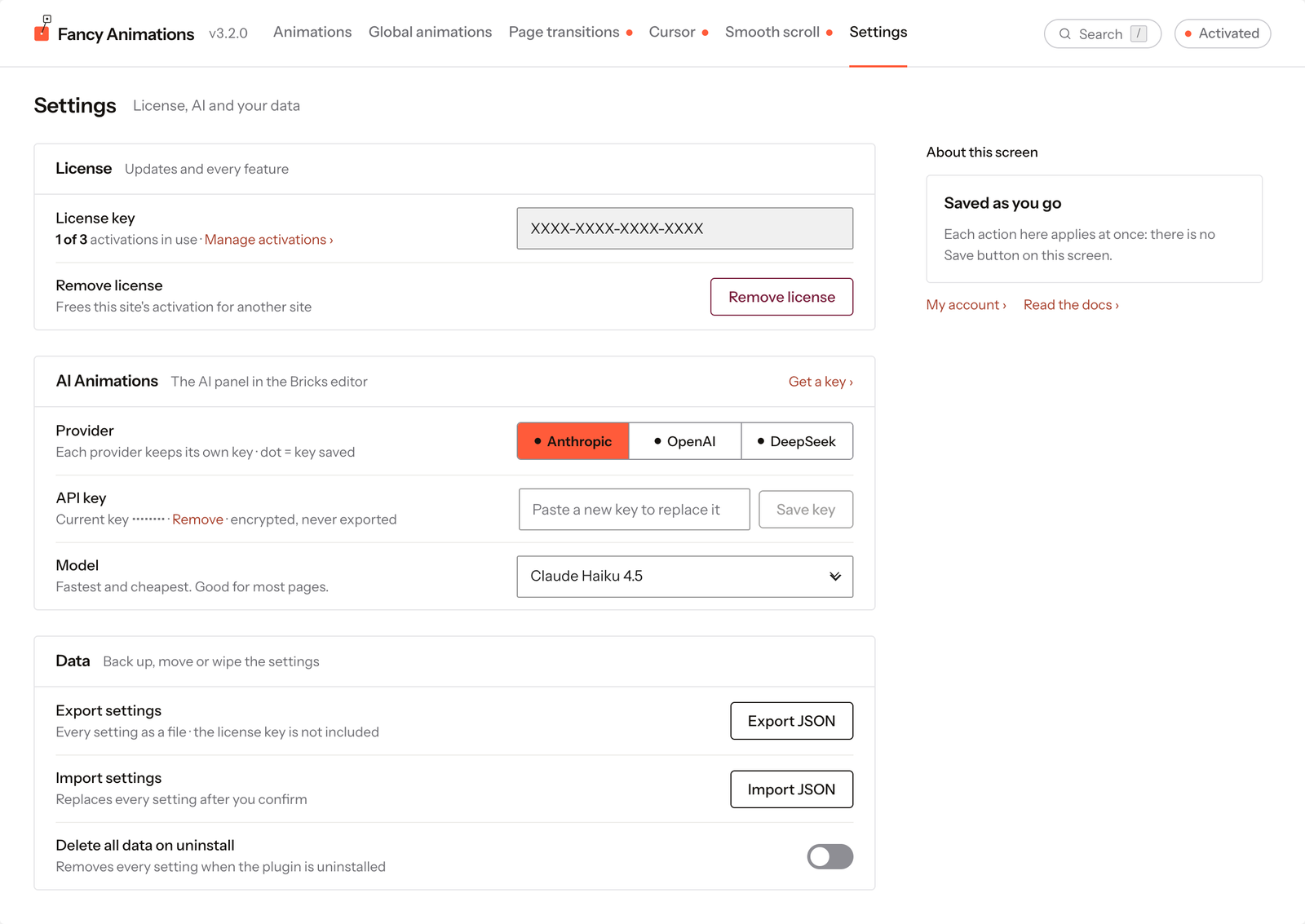
In wp-admin: Fancy Animations → Settings. This one screen holds your license, the AI provider key used by the AI panel, and settings backup and restore. Unlike the other screens it has no save bar: each action here applies at once.
Activating your license
- Paste the license key from your purchase confirmation email into License key.
- Click Activate. The page reloads a moment later with the new status.
- The chip in the top bar reads Activated or Not activated.
Until the license is active, Settings is the only screen you can open: the Animations, Global animations, Page transitions, Cursor and Smooth scroll tabs show a lock. Animations already on your pages keep working either way.
Licensing runs through Lemon Squeezy. The license enables automatic updates and support, and it's entirely separate from any AI provider key. It also gates AI assistants via MCP, which checks for an active license before it hands reference material or recipes to a connected AI client.
Once active, the License key row shows the key masked and how many activations are in use, with a link to Manage activations in your account. To move the license to another site, click Remove license: after you confirm, the activation is freed for another site, your settings are kept, and the feature tabs lock again until you activate a key.
AI provider key
The AI Animations section powers the AI panel inside Bricks. It's a bring-your-own-key setup with no credits system on top: you're billed directly by the provider you choose, at their own rates.
- Pick a Provider: Anthropic, OpenAI or DeepSeek. Each provider keeps its own key, and a dot next to its name means it already has one saved, so you can switch between them freely.
- Paste that provider's API key and click Save key. Get a key › at the top right of the section opens the provider's page for creating one.
- Choose a Model. It's saved as soon as you pick it.
The key is only used from inside the Bricks builder: no AI calls are made on the published front end. Keys are encrypted before being stored and are never included when you export settings.
Data
| Setting | Effect |
|---|---|
| Export settings | Export JSON downloads fancy-animations-settings.json with every setting. The license key is never included |
| Import settings | Import JSON uploads a file you exported before, and asks you to confirm before it replaces every setting |
| Delete all data on uninstall | Off by default. When on, deleting the plugin also removes its stored settings |
Common problems
- The license shows "Not activated" after pasting a valid key. Check you copied the whole key with no extra spaces, and that you clicked Activate. If the message mentions activations, the key is already in use on as many sites as it allows: free one with Manage activations.
- The AI panel says no API key is configured. The license and the AI key are separate: add a key in the AI Animations section, for the provider that's selected.
- MCP tools return a "license required" message to your AI assistant. See AI assistants via MCP: the reference and recipe tools both require an active license.