
Custom cursor
Custom cursor for your website, set up in WordPress
A custom cursor for your website used to mean a script, a stylesheet and a fix for every link. Now you switch it on in the plugin settings, pick a style, and set text or an image on any element in Bricks.
What you can do
What the cursor can show
A style for the whole site, and text or an image on the elements that need it.
Cursor text
A word on the cursor over a card.
- Our office
Cursor image
An image on the cursor over a link.
Invert colors
Visible on dark and light sections.
Every preset
Styles for the whole site
Set once in the plugin settings.
Cursor style 3
Outline + dot
Outline only
Dot only
Outline 3
Filled
Border
Dashed
Trail 3
Light
Medium
Strong
Click feedback 4
Shrink
Ripple
Pulse
Ring
Drawings of the styles you set once for the whole site. This one uses Outline + dot, Filled, with Shrink on click.
How it works
Switch it on, then add text where it helps
The cursor style lives in the plugin settings. Text and images per element live in the Custom Cursor panel in Bricks.
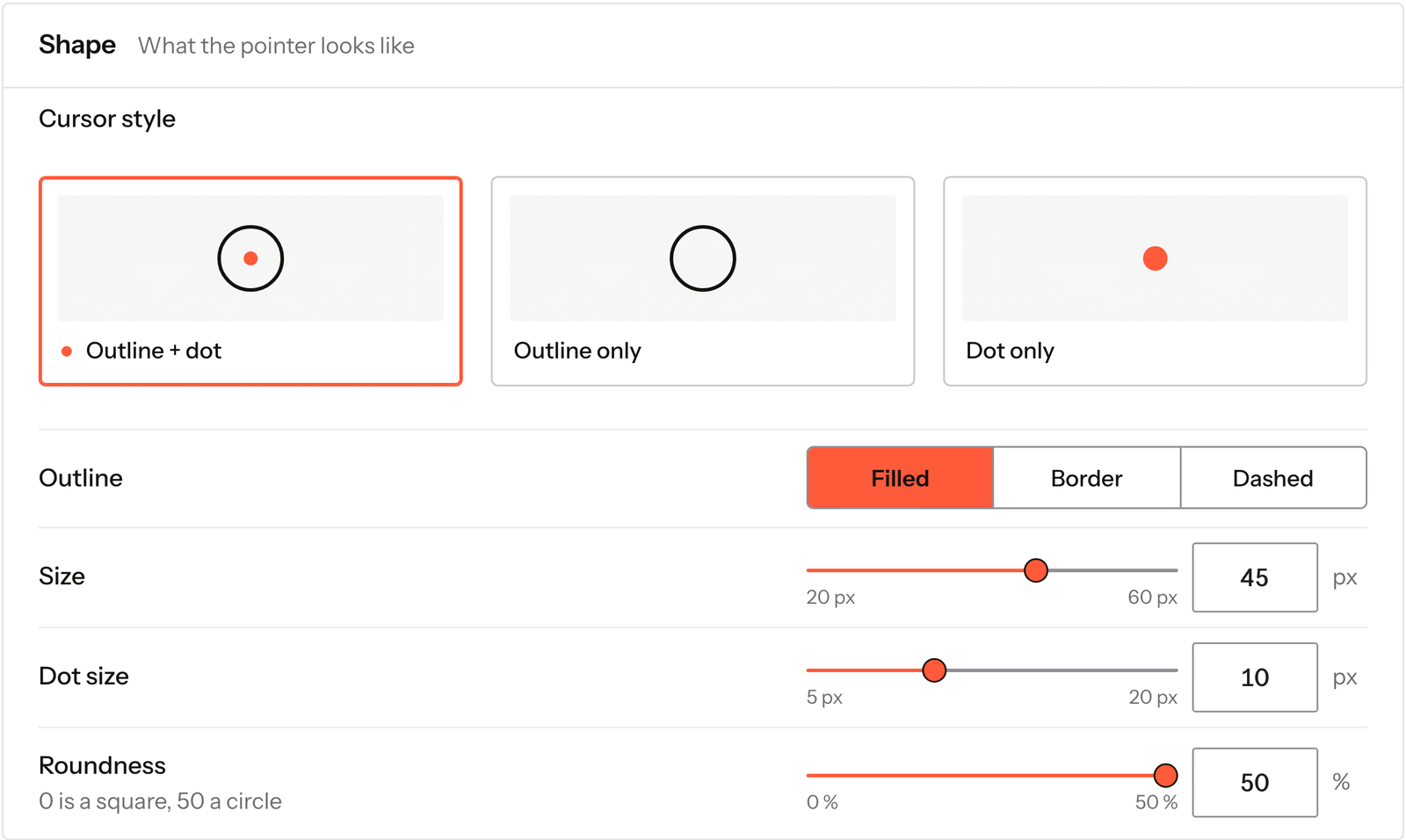
Real capture of the Cursor screen in the plugin settings.
Turn on Custom cursor
In Fancy Animations, Cursor, in your WordPress admin.
Pick a style
Size, follow speed, blend mode and colors.
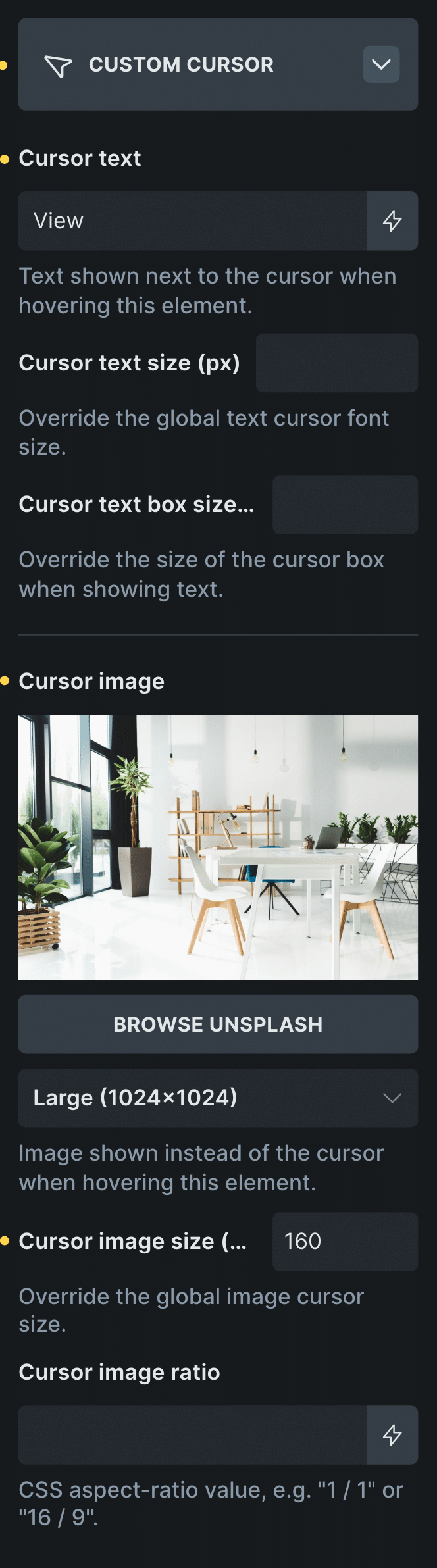
Real capture of an element’s Custom Cursor panel in Bricks. Etch and the block editor have the same panel.
Add text or an image per element
In the element’s Custom Cursor panel, in Bricks, Etch or the block editor.
Control: Cursor text
Text and an image per element in Bricks, in Etch’s settings bar and in the block sidebar of the block editor.
Every setting
Every setting in the panel
The site settings, then text or an image per element in Bricks, Etch or the block editor.
Cursor style
Outline + dot, Outline only, or Dot only. With Dot only, the outline, size, snapping, trail and labels switch off, and the settings say why.
Outline + dotOutline onlyDot onlySize and shape
Cursor size, dot size, roundness and follow speed.
Color
Blend mode, colors, and Force black & white.
Invert on
Selectors where the colors flip, so it stays visible on dark sections.
Hide custom cursor on
Selectors where the normal cursor comes back.
Disable hover effect on
Selectors where the cursor doesn’t grow.
Cursor text
A word on the cursor over this element, with its own size and box size.
Cursor image
An image on the cursor over this element, with its size and ratio. An image wins over text.
Custom cursor with CSS
What CSS can do, and what it can’t
CSS can swap the cursor for an image with the cursor property. That is all it does: no motion, no text, no change over different sections.
A cursor that follows smoothly, grows over links and shows a word needs a small script. The plugin adds it, and leaves touch screens alone.
Read the docs on the cursorBefore and now
What it took before, and what it takes now
Custom cursors look simple until you test every link.
Beforea cursor script
- Not included:A cursor script and its styles
- Not included:A fix for every link and button
- Not included:Invisible on dark sections
Nowwith Fancy Animations
- Not included:Switched on in the settings
- Not included:Invert colors on the sections you choose
- Not included:Text or an image per element in Bricks
What happens on phones and tablets?
It turns off on touch screens, and below the Minimum screen size you set.
Can I hide it on some elements?
Yes. Hide custom cursor on takes the selectors where the normal cursor should come back.
Add a custom cursor to your next site
From $179, one payment, every update for life. 14-day refund.