
Entrance animations
WordPress animation plugin for entrance effects
Entrance animations play when an element reaches the screen. This WordPress animation plugin puts them in the Bricks panel, with presets and a stagger for cards, so you never type a delay by hand again.
What you can do
Pick a preset, then fine-tune it
A few of the entrance presets in the plugin. Each one comes in softer and stronger versions.
Fade
Appears in place.
Slide
Comes up from below.
Zoom
Grows into place.
Blur
Comes into focus.
Fan
Swings in like a card.
Ken Burns
A slow zoom for photos.
Go deeper
One card after another
Stagger children gives each card a little more delay than the one before. It has its own page.
Stagger animation
One card after another, with no delays to type.
Trigger
Choose where on the screen each one starts
Each element starts when it reaches its own line, from 10 % to 90 % of the screen, measured from the bottom. These four cards share a row: scroll slowly and each one waits for its line.
Trigger animation when Fully visible waits until the whole element is on screen, and Remove when below trigger percent plays it again each time it comes back.
Every preset
Every entrance preset, playing
All 52 presets in the panel, grouped the way you’ll look for them. Ring and Border keep moving after they arrive: a ring that pulses outward and a border that turns. Ring comes in four colors and three sizes; here are the main ones.
Fade 1
Fade In
Slide 14
Left to Right
Right to Left
Bottom to Top
Top to Bottom
Left to RightSoft
Right to LeftSoft
Bottom to TopSoft
Top to BottomSoft
RelativeLeft to Right
RelativeRight to Left
RelativeBottom to Top
RelativeTop to Bottom
RelativeBottom to Top · Soft
RelativeTop to Bottom · Soft
Zoom, blur and flicker 6
Zoom In
Zoom Out
Blur
Flicker
Bounce
Bounce 200
Circle reveal 6
Center
Top Left
Top Right
Bottom Left
Bottom Right
Circle Convert
Fan 4
Left to Right
Right to Left
Center to Top
Center to Bottom
Rotate 5
Center
Horizontal
Vertical
Diagonal 1
Diagonal 2
Sweep 6
Left to Right
Right to Left
Top to Bottom
Bottom to Top
Center Horizontal
Center Vertical
Ken Burns 7
Top Left
Top Right
Left
Right
Bottom Left
Bottom Right
Center
Ring 8
PrimarySmall
PrimaryMedium
PrimaryLarge
SecondarySmall
SecondaryMedium
SecondaryLarge
WhiteMedium
BlackMedium
Border 4
Primary
Secondary
White
Black
Every preset plays here on a loop. On your site each one plays once, when the element arrives.
Combine them
Two presets on one element
Add a second row and both play at once, as long as they move different things. Fade changes opacity and Slide moves the element, so together you get a fade that rises.
Fade + Slide
Both play: one fades, one moves.
Zoom + Blur
Both play: one scales, one sharpens.
Relative Slide + Zoom
Both play: the relative slide moves the position, Zoom the scale.
Custom animations
When no preset fits, describe your own
Pick Custom in the panel and the plugin still decides when it plays, with the time, delay, trigger and stagger you set. You don’t need to know CSS: describe the motion in the AI panel in Bricks, or to your own assistant from version 3.2, and it writes the keyframes for that element.
Make the card unfold toward me in 3D from its bottom edge, coming into focus, and let it settle with a small bounce.
How it works
Presets in the panel, delays set for you
Entrance animations have their own panel in Bricks. Choose a preset and the plugin handles when it plays.
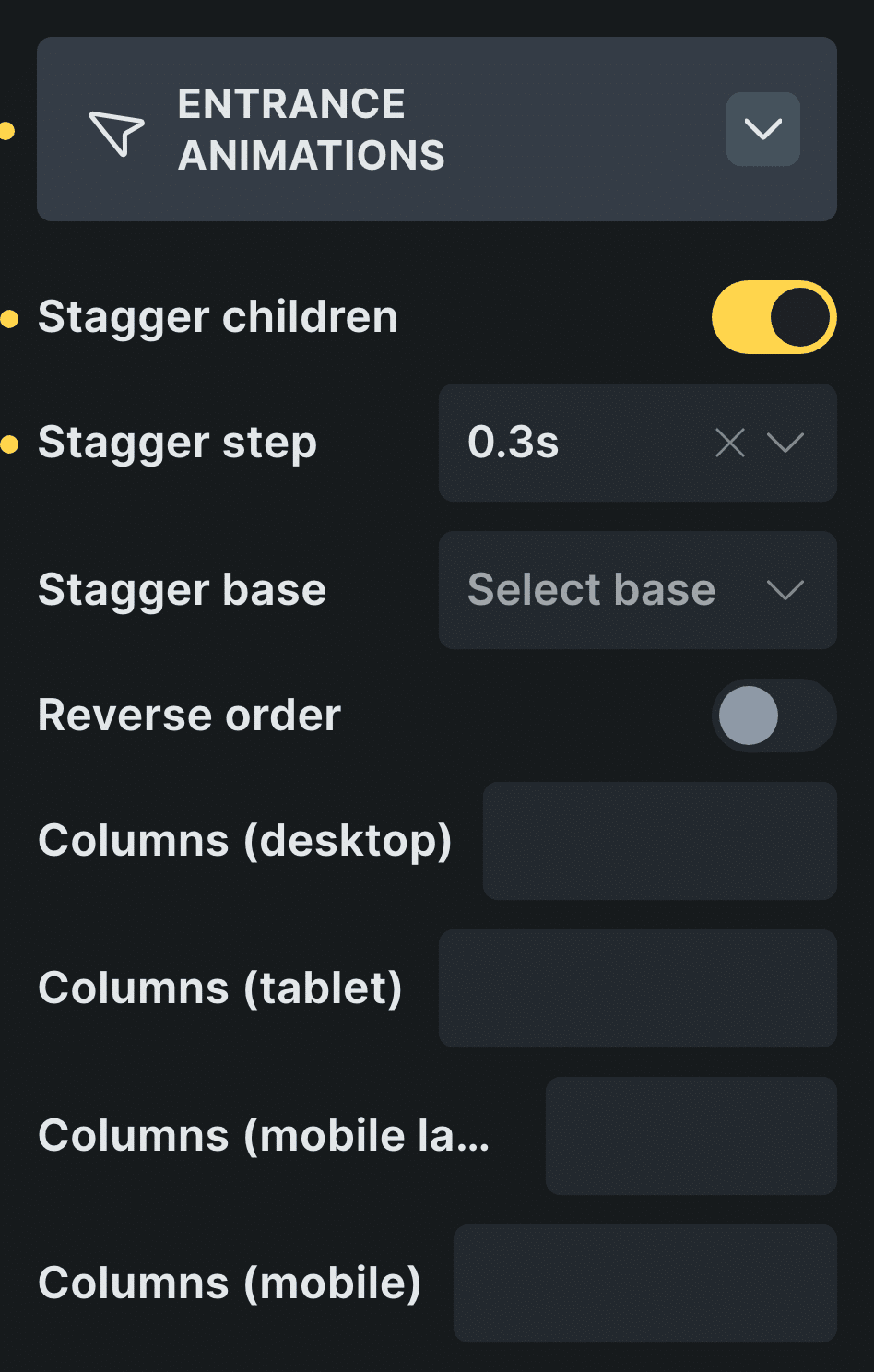
Real capture of the panel in Bricks, in Bricks’ own colors.
Pick the element
Select a heading, a card or the grid that holds the cards.
Choose a preset in Entrance Animations
Slide Bottom to Top (Soft) is a good first pick.
Turn on Stagger children for grids
Each card enters a moment after the one before.
Control: Stagger children
In Etch the same settings live in the Fancy panel, and in the block editor in the block sidebar.
New in version 3.2 · or ask your assistant
“Add a features section: a heading whose words animate in one by one, then a grid of 6 cards that enter one after another.”
Every setting
Every setting in the panel
Every setting in Entrance Animations, with the values you can pick. Leave one empty and it uses the site default.
Overwrite Time
How long the animation takes.
0.3s0.5s0.7s1s1.3s1.5s1.7s2s2.5s3s4s5s10s20s30sOverwrite Delay
How long it waits before starting. The site default is 0s from version 3.2.
0s0.3s0.5s0.7s1s1.3s1.5s1.7s2s2.5s3s4sViewport trigger
How far into the screen the element has to come before it plays.
10%20%30%40%50%60%70%80%90%Trigger animation when
When its top reaches that point, or when it is fully visible.
TopFully visibleRemove when below trigger percent
Plays again each time it comes back.
Run only once
Plays the first time and stays.
Loop (infinite)
Keeps playing, for small details.
Elastic timing-function
A little overshoot at the end. Bricks and Etch.
Disable from tablet / mobile
Shows the element still on smaller screens.
Minimum screen size
A site setting: below the width you choose, entrance animations are off for the whole site.
Stagger children
Children enter one after another. It has its own page.
Reduce motion and small screens
Calm when people ask for it
With Respect reduce motion on in the settings, people who ask their system for less motion see every entrance already in place.
Disable from tablet and Disable from mobile keep an element still on smaller screens, and Minimum screen size turns entrances off below a width you choose. And if the script never runs, because JavaScript is off, blocked or held back by an optimization plugin, entrance elements still show, just without the animation.
Read about accessibility in the docsBefore and now
What it took before, and what it takes now
Most people come from AOS, the animate-on-scroll library.
BeforeAOS and attributes
- Not included:An extra library on every page
- Not included:A data attribute on each element
- Not included:Delays typed by hand for each card
- Not included:No settings in the builder panel
Nowwith Fancy Animations
- Not included:Presets in the Bricks panel
- Not included:Stagger children sets the delays
- Not included:Run only once, or every time
- Not included:Turn it off on tablets or phones per element
Does the stagger work in a query loop?
Yes. It applies to the direct children of the element with the stagger, and again to cards that arrive with load more or AJAX pagination. If each card is wrapped, put the stagger on the wrapper.
Can I put two animations on one element?
Yes, if they move different things, like Fade and Slide. Two that both move the element, like Slide and Zoom, show only one: use the relative Slide, or write both moves in one custom animation.
Does it respect reduce motion?
Yes, with Respect reduce motion on: entrances show already in place.
What if JavaScript is blocked?
The element still shows, just without the animation.
Can visitors turn animations off?
Yes. In Bricks, add the Toggle Animations element: a switch that turns every animation off for that visitor and remembers it for a year.
Is it the same in Etch and the block editor?
The same presets and settings. Only Elastic is missing in the block editor.
Add entrance animations to your next site
From $148.57 instead of $179, one payment, every update for life. 14-day refund.