

Most roundups of scrolling website examples are screenshots and a link to a live site that may change tomorrow. The examples on this page are different: each one is built with Fancy Animations in Bricks, so you can open the scroll animations page and see the exact same effect running, then inspect the setting that makes it work.
What makes a scroll website work: motion tied to the reader’s own pace
A scrolling website works when the motion answers to the reader, not the other way around. The scroll-driven effects below are tied to the scroll bar, so scrolling back rewinds them. The reveals are different: the scroll decides when they start, and then they play out their own short duration. What neither should do is keep the reader waiting on a loop they did not ask for.
Scrolling website examples by effect, each with a live demo
Each kind of scroll effect solves a different problem. Below, the common ones, what they are good for, and where you can see one running today.
Reveal and fade-in on scroll: the entrance animations most sites start with
The simplest scroll effect: an element fades or slides in once, the moment it reaches the screen. It is also the one every site should have before anything fancier — see entrance animations for the full set (fade, slide, zoom, reveal).
Sticky scenes and stacked cards
A section pins in place while the scroll drives what happens inside it — cards that stack one over the other, a step-by-step story that advances as you scroll.
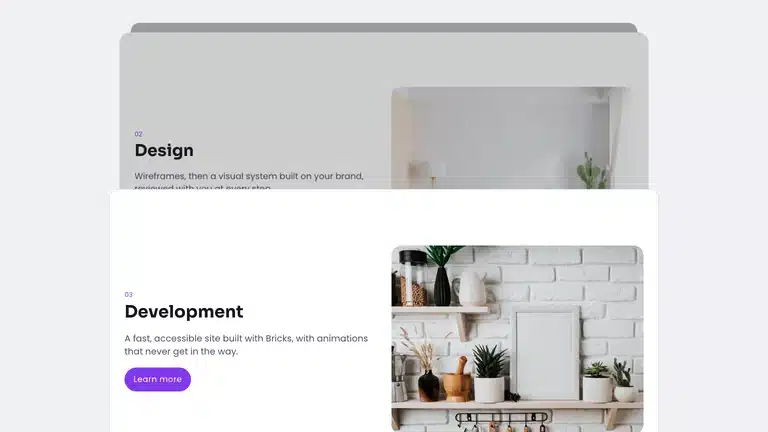
Horizontal scroll sections and image galleries
The normal vertical scroll of the page moves content sideways instead — a row of cards or images that slides left as you scroll down. Horizontal scroll sections shows it running: the section stays pinned until its own horizontal distance is covered, then the page continues down.
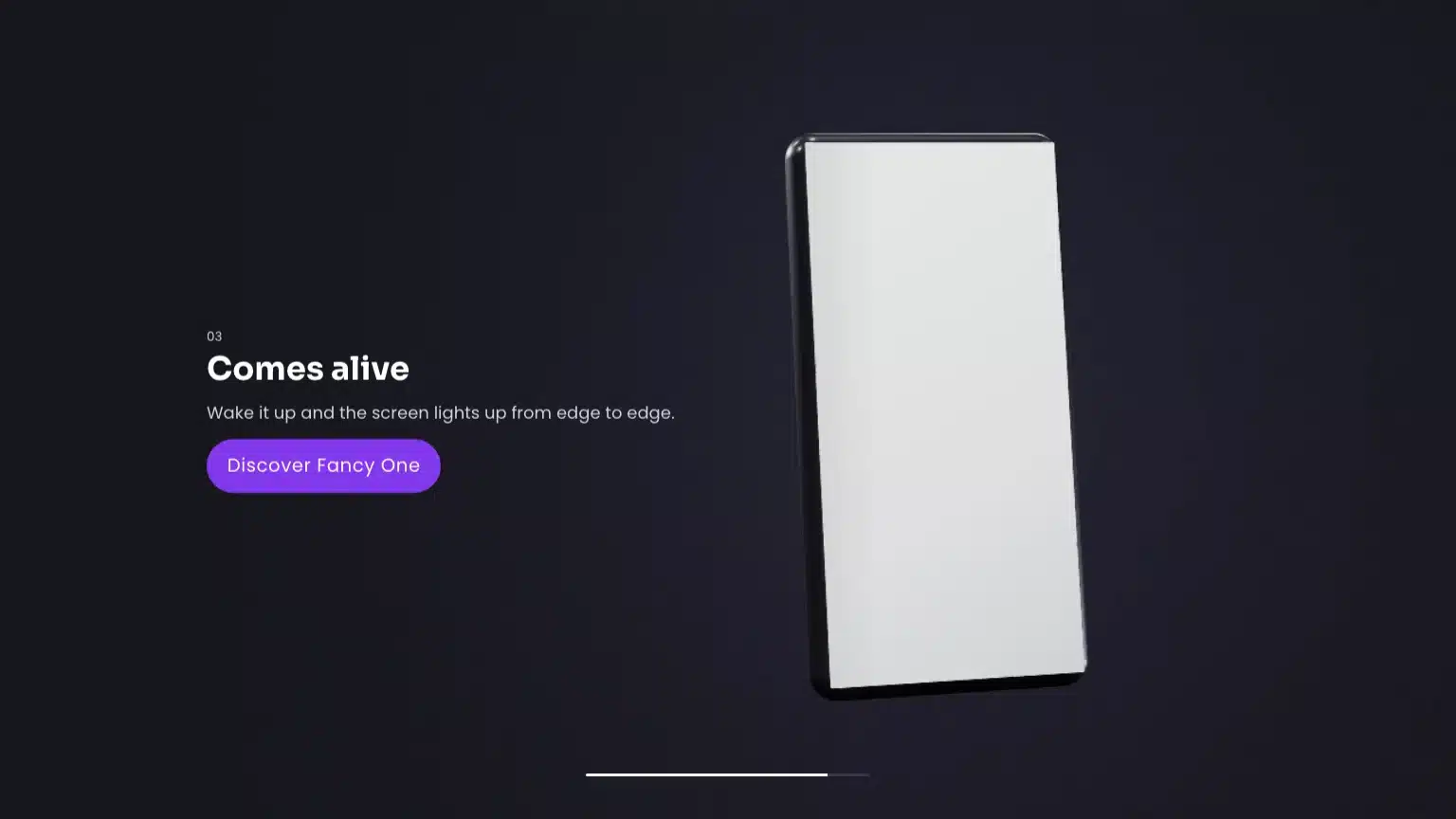
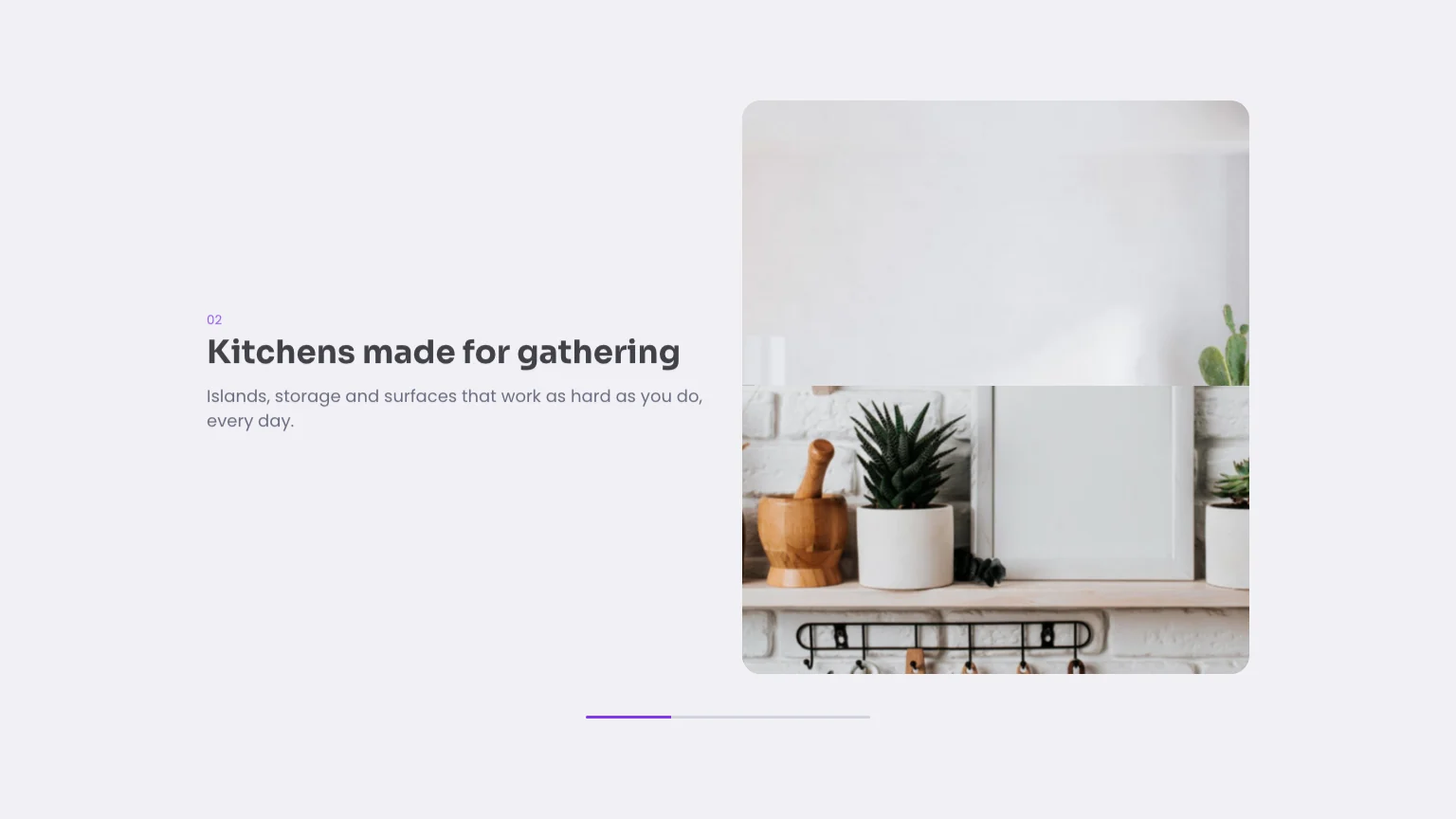
Scroll-controlled video and split scroll
Two different techniques that both use the scroll position as a precise control.
Parallax and impulse-style scroll animations
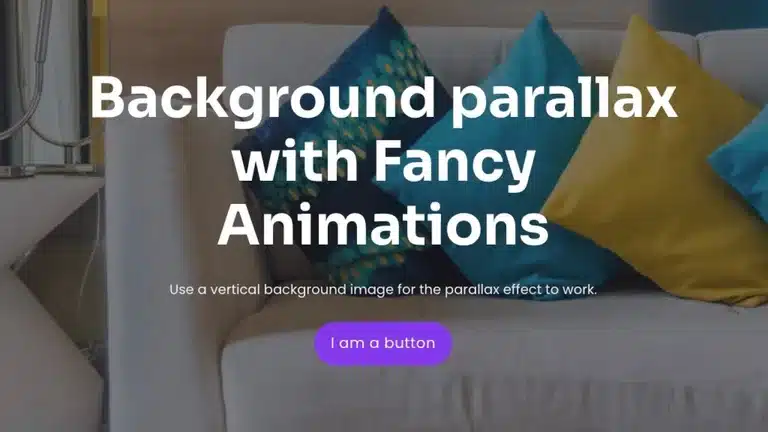
Layers that move at different speeds as you scroll give a page depth.
3D and WebGL scroll sites: when Three.js is worth it and when it is not
Full 3D scenes driven by scroll (WebGL, Three.js) are real, but they are a different investment: a 3D scene needs modeling, lighting and a render loop, not a CSS class. For most sites, the CSS and small-script effects above cover what a visitor actually notices; reach for WebGL only when the 3D object itself is the point of the page.
Best animated websites: what award sites reward and what you can borrow for a client site
Award sites (Awwwards and similar) are judged on originality as much as usability, so they often push further than a client brief calls for: longer load times, a learning curve on navigation, effects that only make sense once. What is worth borrowing is narrower and more useful: a clear sticky scene that explains one idea, a horizontal section that groups related items, a reveal that gives a heading weight. The examples on this page are picked for that: effects a real client site can use, not a showreel.
Types of scrolling in web design: vertical, horizontal, sticky, scroll-snap and scroll-driven
| Type | What it does | Example above |
|---|---|---|
| Vertical | The default on the web; up and down. | — |
| Horizontal | Content moves sideways, usually inside one section. | Horizontal scroll sections |
| Sticky / pinned | An element stays in place while the page scrolls past, or drives it. | Stacked cards, video scrub |
| Scroll-snap | The scroll stops at defined points, section by section. | — |
| Scroll-driven | Progress ties directly to scroll position; scrolling back rewinds it. | Split scroll, parallax |
Scroll bars, click-and-scroll and textarea scrolling: the interface basics behind every effect
Underneath every effect above is the same browser mechanic: a scrollable container has a scroll bar, can be dragged, and (inside a textarea) scrolls its own text independently of the page. None of that changes when you add animation on top; it is worth knowing because a scroll effect that fights these basics — trapping the wheel, hiding the scroll bar without a reason — is usually the one visitors notice for the wrong reason.
How to make an animated scrolling website in Bricks without code
Do it without code
Every effect above is a setting, not a script
Each example on this page is a real Fancy Animations setting on a Bricks element: ScrollTrigger controls (from and to, start and end, Covered by next sibling, Sequence children), on a stage you pin with CSS position: sticky — or a ready template from the template library.
No code written
Go further: scroll animations and templates for Bricks, Etch and Gutenberg
Scroll animations covers every control used above; the template library has these sections ready to paste, and the same panel works in Etch and Gutenberg.
What is the difference between vertical and horizontal scrolling?
Vertical scrolling moves the page up and down and is the default on the web; horizontal scrolling moves content sideways, usually inside one section while the page still scrolls vertically. The guide shows both built in Bricks.
What is sideways scrolling called?
Horizontal scrolling, or side-scrolling. On websites it is usually a horizontal scroll section or a gallery that moves with the page.
What are the main types of scrolling on websites?
Vertical, horizontal, sticky or pinned, scroll-snap (section by section), infinite loading and scroll-driven animation, where elements move with the scroll position. The table above compares the main ones.
Do scroll effects slow a website down?
Heavy libraries and hidden-by-default content do. Effects built with CSS transforms and a small script, with content visible before it runs, keep Core Web Vitals in shape.
How many scroll effects should one page have?
Fewer than you think: one or two scenes that explain something, plus light reveals. The examples here mark which effect each section uses so you can judge the balance.
Can I build these scrolling examples in Bricks without code?
Yes. Every example in this guide uses Fancy Animations classes or templates; the scroll animations page shows the controls and the template library has the sections ready to import.